

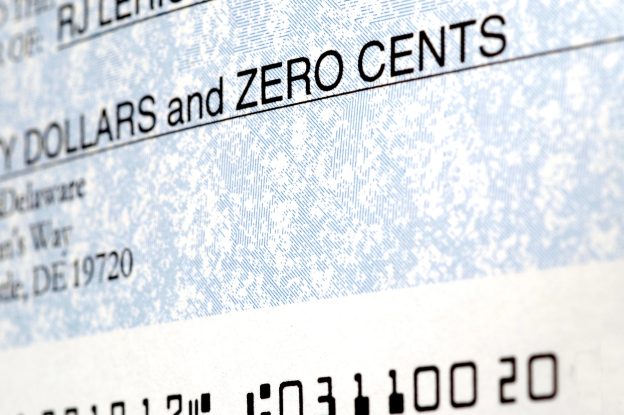
Laser checks make it easy to print professional business checks on demand, right from your accounting software, using your in-office laser (or inkjet) printer. If you run payroll, pay vendors regularly, or just want tighter control over cash flow, laser checks can be a clean, efficient upgrade from handwriting checks or waiting on pre-printed runs.
This guide covers what laser checks are, how to print them correctly, which styles businesses buy most, the right envelopes to match, recommended printers, and the big question: are laser checks secure?
What Is a Laser Check?
A laser check is a business check designed to be printed using a laser (or inkjet) printer from within your accounting software. In most setups, the check stock is partially pre-printed (design + security features), and your printer adds the variable details like:
- Payee name
- Amount
- Date
- Memo line
- Bank routing/account numbers (depending on format and setup)
Businesses choose laser checks because they pair well with common accounting platforms (such as QuickBooks-compatible formats like Quicken, Microsoft Money, and more) and support high-volume printing when you need to run batches of payments.
How to Print Laser Checks (Step-by-Step)
Printing laser checks is straightforward, but the details matter. These steps will help you avoid alignment issues, wasted stock, and reprints.
1) Pick the right check format for your workflow
Laser checks typically come in a few popular layouts:
- Top checks (check at the top, stubs below)
- Middle/center checks (check in the middle)
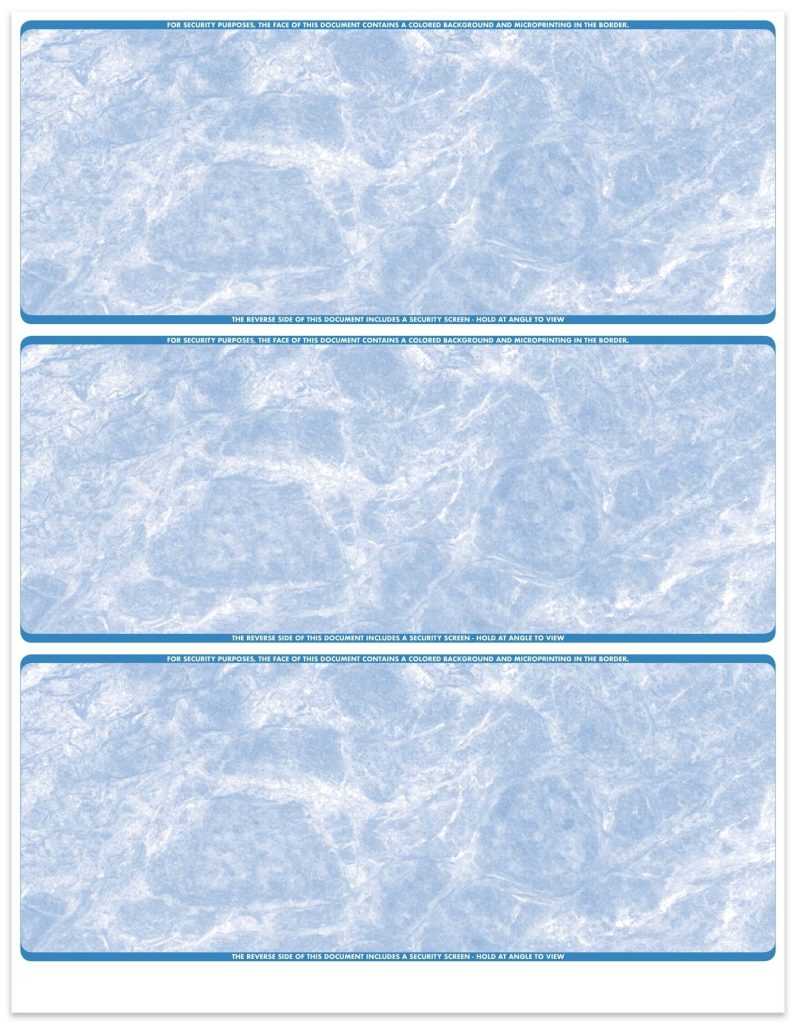
- 3-on-a-page (3-up) (three checks per sheet for batch printing)
Your accounting software’s “check style” setting should match the format you buy.
2) Confirm software compatibility
Before printing, confirm your software supports your selected check style (for example, “QuickBooks-compatible laser checks”).
3) Add/verify your business info in the print settings
Most software will ask for:
- Business name and address
- Bank account details (for the MICR line, if your setup prints it)
- Signature line preferences (some check stock supports up to two signature lines, depending on the style)
4) Set printer preferences (do this once, then save it)
In your printer dialog/settings:
- Use standard letter size (8.5″ x 11″)
- Choose normal or high print quality (avoid “draft”)
- Turn off any “fit to page” scaling
- Keep margins at the default unless your software says otherwise
5) Load check stock correctly
- Fan the stack (prevents double-feeding).
- Place the check stock in the correct tray.
- Pay attention to printer orientation (face-up vs. face-down; top edge first vs. bottom edge first).
💡 Tip: If your printer has a manual feed tray, it often reduces jams and improves alignment consistency.
6) Run a test print (always)
Before printing on real check stock:
- Print one check on plain paper.
- Hold it up against a sheet of check stock to confirm alignment.
- Adjust margins/alignment in your software if needed.
7) Print a single check before printing in bulk
Once alignment is correct:
- Print one live check.
- Confirm the check number sequence (if applicable).
- Confirm addresses line up with window envelopes (more on that below).
Especially if you’re printing multiple checks (vendor payments, payroll, etc.), print 1–2 real checks first, confirm alignment and legibility, then run the rest.
6) Store and track your checks like cash
Printed checks are negotiable instruments. Keep blank check stock locked up, and restrict who can print checks.
Benefits of Laser Checks
Laser checks are popular with businesses because they combine control, speed, and a professional look.
On-demand printing (no waiting on pre-printed check runs)
Print checks when you need them, especially helpful for unexpected vendor invoices, reimbursements, or emergency payments.
Built for high-volume workflows
Laser check stock is made for repeated, consistent printing, ideal if you cut a lot of checks each month.
Works with common accounting software
Many laser checks are designed to work with major accounting platforms like QuickBooks and Quicken, which keeps setup simple.
Cost-effective
You can reduce waste and only print what you need, rather than ordering stacks of checks that may become outdated when your business info changes.
Strong built-in security options
Many business laser checks include features that help deter alteration and forgery, especially when paired with smart handling practices.
Popular Laser Business Checks
If you want to browse business laser check options by layout and style, CheckWorks’ Business Laser Checks collection is the easiest jumping-off point.
Here are a few popular styles that customers often choose for a clean, professional look:
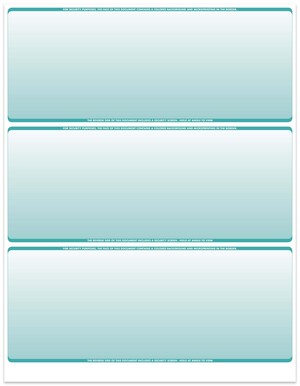
Gradient Teal Laser Business Checks (3-Up)
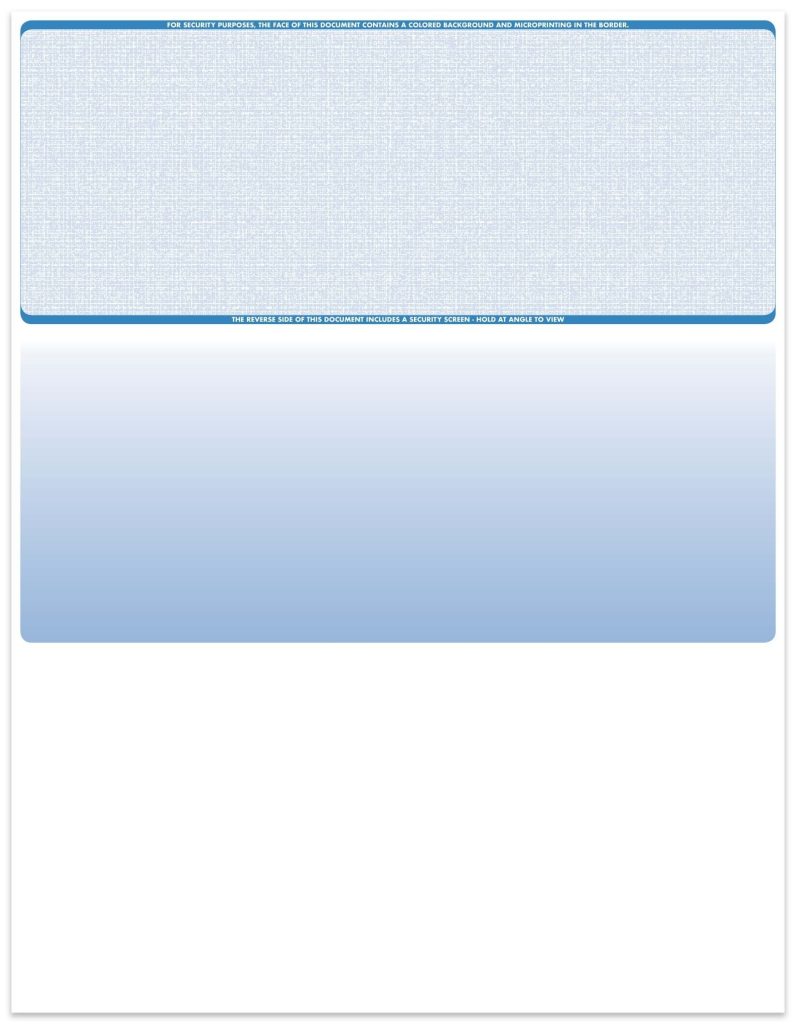
Linen Reflex Blue Laser Business Checks (Top)
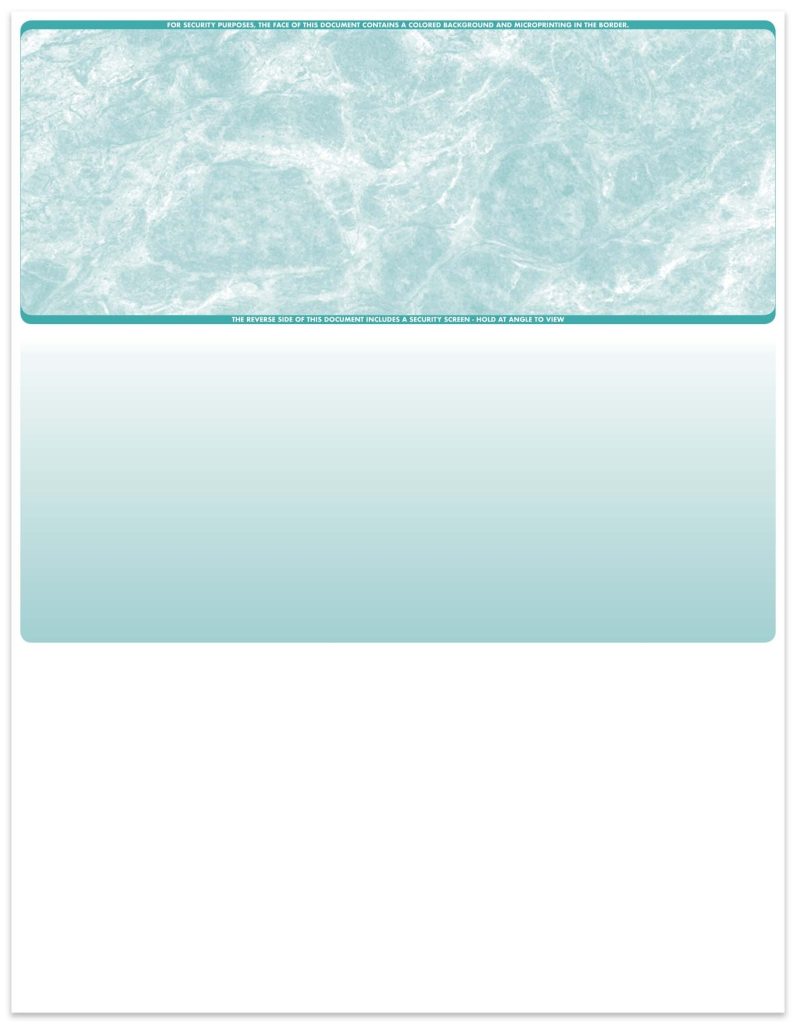
Marble Teal Laser Business Checks (Top)
Marble Blue Laser Business Checks (3-Up)
💡 Tip: pick your format first (top/center/3-up), then choose the design you like.
Laser Check Envelopes
The “right” envelope depends on whether your checks include voucher stubs and where the address blocks print. Most businesses prefer double-window check envelopes because they:
- Save time (no labels, no handwriting)
- Look more professional
- Reduce addressing mistakes
CheckWorks offers Laser Check Envelopes designed to match common check layouts.
When shopping, look for:
- Double-window (return address + recipient address)
- Security tint (helps protect sensitive info inside the envelope)
- Self-seal (faster sealing for higher volume mailing)
Best Laser Check Printers
You don’t necessarily need a “check printer,” but you do need a reliable laser printer that works well with your check stock and (when required) supports MICR workflows via the right toner.
Here are a few commonly recommended options seen in check-printing guides:
- Brother HL-L2405W
- Brother HL-L2350DW
- Brother HL-L2300D
- HP Color LaserJet Pro M283fdw
- HP LaserJet Pro 4001dn
- HP LaserJet Pro MFP 3101fdw
Quick note: Many businesses use MICR toner for bank-reading compatibility (depending on setup and bank requirements). Some bundles (like certain VersaCheck options) include MICR-specific cartridges and software.
Printer tips for checks:
- Prefer models with a manual feed tray for better control.
- If you print frequently, prioritize duty cycle and paper handling over fancy features.
- Keep a spare toner cartridge on hand; running out mid-run is a headache.
Are Laser Checks Secure?
Yes, when the check stock includes strong security features, and your process is tight. Check security is a combination of the paper, the printing method, and how the checks are handled after printing.
The real-world risk: Check washing laser-printed checks
Sometimes, fraudsters attempt check-washing laser-printed checks by using chemicals to remove or alter ink/toner content, then rewriting the payee or amount.
High-security check stock helps reduce that risk by making tampering obvious or by preventing clean alteration in the first place.
Security features that matter
Many secure business laser checks include protections such as:
- Chemically sensitive (chemically reactive) paper that shows staining/discoloration when chemicals are used
- Microprint signature lines that are difficult to reproduce cleanly
- Security screen patterns that make copying/alteration more obvious
- Warning box/padlock icons (common on high-security checks)
CheckWorks’ laser checks include security elements like chemically sensitive paper, microprint signature lines, and security screens.
Smart handling practices (don’t skip these)
Even a great security paper can’t fix sloppy processes. To keep laser checks safer:
- Lock up blank check stock.
- Limit who can print checks (and log it).
- Use positive pay if your bank offers it.
- Mail checks securely (and consider alternatives for high-dollar payments).
- Reconcile accounts frequently so fraud is caught faster.
Bottom Line
If your business prints checks regularly, laser checks are one of the most practical ways to stay efficient while keeping a professional, consistent payment process. Choose the right layout (Top, Middle, or 3-Up), dial in your printing setup with a test page, use matching double-window envelopes, and take security seriously, especially around check washing, laser-printed checks, and physical handling of blank stock.
